 Kind PDF
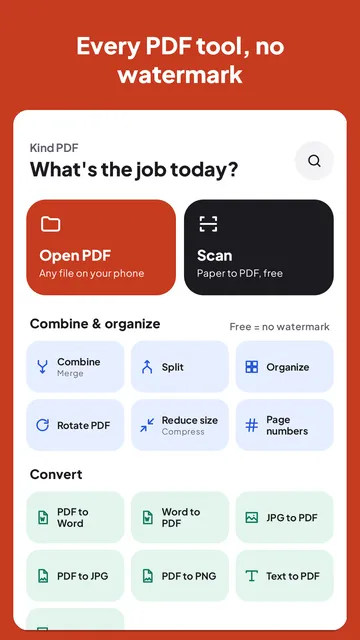
An application wants one PDF, and you have a CV, a cover letter and two certificates. Here is how to combine PDF files on your Android phone, in the right order, and how to split or rearrange pages when you only need some of them.
The short answer
Open a merge tool, pick the PDFs, drag them into the order you want and combine them. The new file has every page of the first PDF, then every page of the second, and so on. Your original files stay as they were.
Most free merge tools on the web upload all your files to a server first. When the files are personal, like ID copies, payslips or school records, merging on the phone is the safer choice.
Step by step with Kind PDF
Kind PDF merges on your phone, never uploads your files and adds no watermark.
- Open Combine. Tap Combine (Merge) on the home screen, or long-press the app icon for the Combine shortcut.
- Choose your files. Pick PDFs, images or both. Tap Add files if you need more later. Each file shows a thumbnail and its page count.
- Set the order. Long-press a file and drag it up or down, or use Move earlier and Move later from its menu.
- Check the free limit. The free version combines up to 3 files and 20 pages per job, and the screen tells you before you start.
- Combine and save. Open, share or save the merged PDF. Saving, opening and sharing are always free.
Only need some of the pages?
Combine joins whole files. To use just part of a PDF, take the pages you need out first, then combine. Or combine everything and remove the extra pages afterwards. Kind PDF has two tools for this:
| Tool | What it does | Use it to |
|---|---|---|
| Split: by page ranges | Makes one file per range, for example 1-3, 4-8, 9 | Cut a long PDF into chapters or sections |
| Split: every N pages | Makes a new file every few pages | Break up a batch of scanned forms of the same length |
| Split: extract pages into one file | Copies only the pages you pick into a new PDF | Keep the 2 pages you need from a 20-page document |
| Organize | Shows every page in a grid to reorder, rotate, duplicate or delete | Tidy a merged PDF: move pages, fix sideways scans, drop blank pages |
Split and Organize work on documents of up to 20 pages in the free version. Both save a new file, so the original is never changed. When Split makes several files, you can share them all at once or save them to a folder.
Organize pages after merging
In Organize, tap a page to select it, or select several. Long-press and drag a page to move it, or use Earlier and Later. Rotate turns sideways pages upright, Duplicate copies a page and Delete removes it, with Undo if you change your mind. Tap Save changes to get the new PDF.
Things that can stop a merge
- A password-protected PDF. A locked file can't be read until it's unlocked. Kind PDF keeps it in the list marked "can't open" and skips it. Unlock it first with the password you know, then add it again.
- A damaged file. It's marked and skipped the same way, so the rest still combine.
- A very large result. Merging scans adds up quickly. Use Reduce size afterwards if the file is too big for email or an upload form.
- Bookmarks and form fields. Kind PDF keeps each file's bookmarks and form fields in the merged PDF, so a form you merge can still be filled in.
Quick answers
How do I merge PDF files on Android for free?
Open Kind PDF, tap Combine, pick your PDFs, drag them into order and combine them. The free version merges up to 3 files and 20 pages per job, with no watermark and no account.
Can I change the order of the files before merging?
Yes. In Kind PDF, long-press a file and drag it, or use Move earlier and Move later. After merging, the Organize tool lets you move individual pages too.
Can I merge only some pages from a PDF?
Combine uses whole files, so extract the pages you need first with Split, then combine the result. You can also merge everything and delete the extra pages in Organize.
Can I combine images and PDFs into one file?
Yes. Kind PDF's Combine tool accepts PDFs and images in the same list. Each image becomes a page in the order you set.
Are my files uploaded when I merge them?
Not with Kind PDF. Combining, splitting and organizing all happen on your phone, so your files never leave it and the tools work offline.
Read next
Try it yourselfKind PDF is free on Google Play.