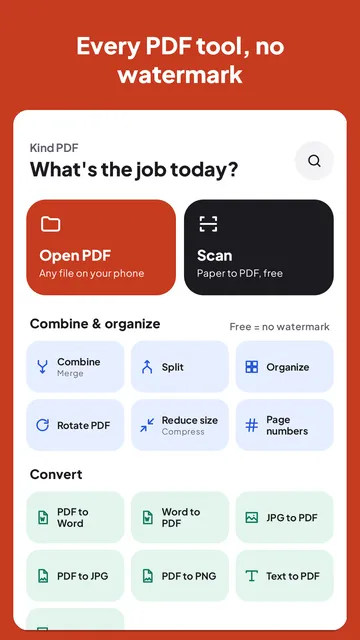
To scan a document to PDF on Android, use a scanner app that finds the page edges, crops and straightens it, then save it as a PDF; add OCR if you want to search or copy the text. Kind PDF does this free, without uploading your pages. Here are the steps, the right filter and tips for sharper scans.
The short answer
Open a document scanner, point your phone at the page, let it find the edges, add more pages if you need them, and save as PDF. Use the Auto filter for most letters, forms and receipts, and Black & white for the smallest file.
For a sharp scan, use even daylight, put the page on a darker surface and hold the phone flat above it. To make the text searchable, run OCR, which adds an invisible text layer without changing how the pages look. Kind PDF does all of this on your phone, with no upload and no watermark.
Scanning versus taking a photo
A plain photo of a page is tilted, has the table around it and makes white paper look grey. A document scanner finds the page's edges, crops and straightens it, and cleans up the colors so the paper looks white and the text looks dark. The result reads better, prints better and is usually smaller.
Most scanner apps can do this. What differs is what happens next: some send your pages to a server for cleanup or text recognition, and some stamp a watermark on the free version.
Step by step with Kind PDF
Kind PDF scans on your phone with Google's built-in document scanner. Your pages are not uploaded, and there is no watermark.
- Tap Scan on the home screen, or long-press the app icon for the Scan shortcut.
- Point at the page. The scanner finds the edges, crops the page and cleans it up. Adjust the corners if it missed one, and add as many pages as you need. You can also import photos you already took.
- Check the pages. Kind PDF shows every page as a thumbnail. Rotate or remove a page (with Undo), use Move earlier or Move later to fix the order, or tap Scan more to add pages.
- Pick a filter and page size. Auto turns grey paper white and is the default for scans. Page size can fit each image, or use A4 or Letter.
- Save. Save as a PDF, or as JPG images if that is what you need. Saving, opening and sharing are always free.
- First time only: the scanner is downloaded once by Google Play services, so it needs an internet connection the first time. After that it works offline. If it isn't ready yet, Kind PDF offers Use photos to make the PDF from pictures instead.
Which filter to use
| Filter | What it does | Best for |
|---|---|---|
| Auto | Stretches the contrast so grey paper turns white | Most letters, forms and receipts |
| Color | Keeps the colors as they are | Photos, colored forms, stamps and highlighter |
| Grayscale | Removes color but keeps shades | Pencil, faint print and pages with pictures |
| Black & white | Turns every pixel black or white, adapting to dim pages | Plain text documents, the smallest files |
You can set the default filter and page size for new scans in Kind PDF's Settings, under Scanning.
Make the scan searchable with OCR
A scanned page is a picture of text, so you can't search it, select words or copy them. OCR (optical character recognition) reads the words in the picture and adds them to the PDF as an invisible text layer. The pages look exactly the same, but now search and copy work.
In Kind PDF, open OCR (searchable PDF) from the home screen, or open the scan and choose OCR from Tools for this file. Pick the language of the text and tap Make searchable. Recognition runs on the phone, and pages that already have text are left as they are.
- Free limit. The free version makes the first 3 pages of each document searchable, and the button says Make first 3 pages searchable when the file is longer. The rest of the document is still saved.
- Languages. English, Spanish, French, German, Portuguese and other Latin-alphabet languages work offline from the start. Chinese, Japanese, Korean and Devanagari (Hindi, Marathi, Nepali) are downloaded once the first time you use them. Arabic OCR isn't offered yet, because there is no on-device reader for it and Kind PDF never sends files online.
- Want editable text instead? PDF to Word and PDF to Text can also read scanned pages with on-device OCR.
Tips for a sharper scan
- Use even light. Daylight from a window works well. Avoid your own shadow over the page and the glare of a lamp directly above.
- Put the page on a darker surface. Contrast between the paper and the table helps the scanner find the edges.
- Hold the phone flat above the page, not at an angle, and keep it still for a moment.
- Flatten folds and curls, especially near a book's spine, where text bends away from the camera.
- File too big to send? Use Reduce size to shrink the PDF for email or upload forms.
Quick answers
How do I scan a document to PDF on Android?
Open a scanner app such as Kind PDF, tap Scan and point the camera at the page. The scanner finds the edges, crops and cleans the page, and you save all the pages as one PDF.
Is the scanner free, and does it add a watermark?
Scanning in Kind PDF is free and never adds a watermark. Saving and sharing the PDF are always free too.
Does Kind PDF need the camera permission to scan?
No. The document scanner runs inside Google Play services, so Kind PDF itself doesn't ask for the camera permission. The scanner is downloaded once the first time you use it.
Can I make a scanned PDF searchable?
Yes. Kind PDF's OCR tool reads the text in scanned pages on your phone and adds it as an invisible layer, so you can search, select and copy it. The free version does this for the first 3 pages of each document.
Does scanning work offline?
Yes, after a one-time download. The scanner and some OCR languages are downloaded once by Google Play services; after that, scanning and text recognition work without a connection, and your pages are never uploaded.
Read next
 About Kind PDFCompress a scan to 200 KB onlineHow to compress a PDFRead a PDF aloud on AndroidAll guides
Try it yourselfKind PDF is free on Google Play.