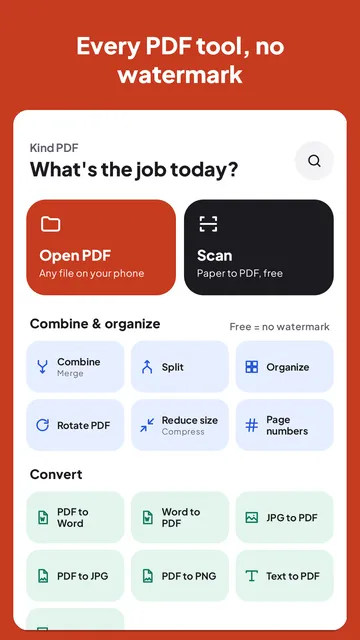
A lease, a permission slip or an offer letter needs your signature today, and there is no printer anywhere near you. You can sign it on your phone in about a minute, without printing or scanning anything. Here are the three free ways, and the steps with real screenshots.
The short answer
Open the PDF in an app that can sign, create a signature (draw it with your finger, type your name, or use a photo of your handwritten one), place it on the signature line and save a signed copy. Add the date next to it if the document asks for one.
Many online signing services upload your document to their servers and often ask you to create an account. For contracts, medical forms or anything with personal details, signing on the phone keeps the document with you.
3 free ways to sign a PDF on your phone
| Way | Good to know |
|---|---|
| Kind PDF app, free on Google Play | Draw, type or photograph your signature, add the date and fill in forms. Works offline, no account, no watermark. |
| Sign PDF in your browser, nothing to install | Open rektodigital.com/tools/sign-pdf in Chrome, draw or type your signature and tap where it goes. The file stays on your phone. |
| Adobe Acrobat Reader, Fill & Sign | Free to sign; Adobe may ask you to sign in, and its other tools need a paid plan. |
For a one-off signature, the browser tool is quickest because there is nothing to install. If you sign things often, an app saves your signature for next time and fills in forms more easily.
Step by step with Kind PDF
Kind PDF is our free PDF app for Android. It signs on your phone, never uploads the file or your signature, and adds no watermark.
- Open the tool. Tap Sign on the home screen, or open the PDF in the viewer and choose Sign from Tools for this file.
- Pick your PDF. Choose it from your phone's files, Downloads or Drive.
- Create your signature. Draw it with your finger in black or blue ink, type your name in one of three handwriting styles, or pick a photo of your signature on white paper. Remove paper background is on by default, so only the ink is kept.
- Save it for next time, if you like. The free version keeps 1 saved signature, and you can always sign with a new one, so signing is never blocked.
- Place it. Drag the signature onto the line, use the corner to resize it and the top handle to rotate it. Use Previous and Next to move between pages.
- Add the date. Date adds today's date in your phone's date format, and you can place it like the signature.
- Save or share the signed copy. Your original PDF is not changed. Saving, opening and sharing are always free.
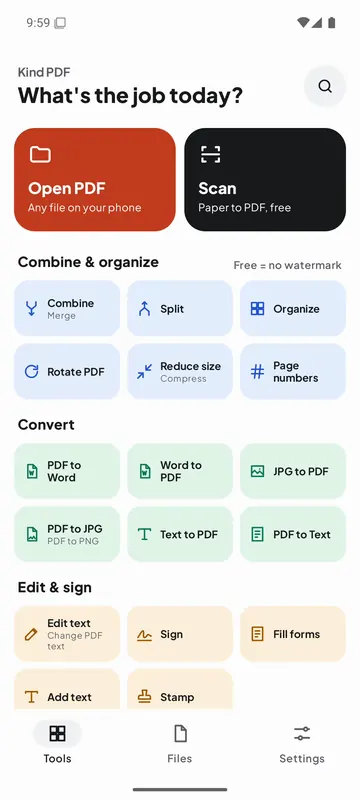
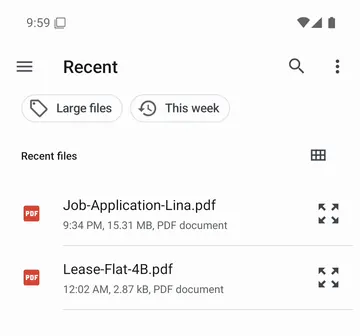
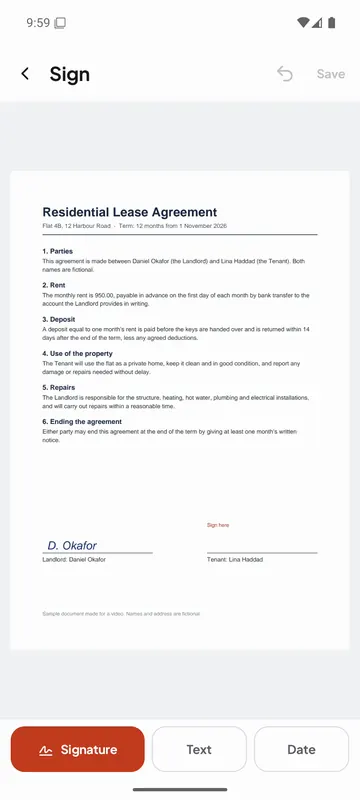
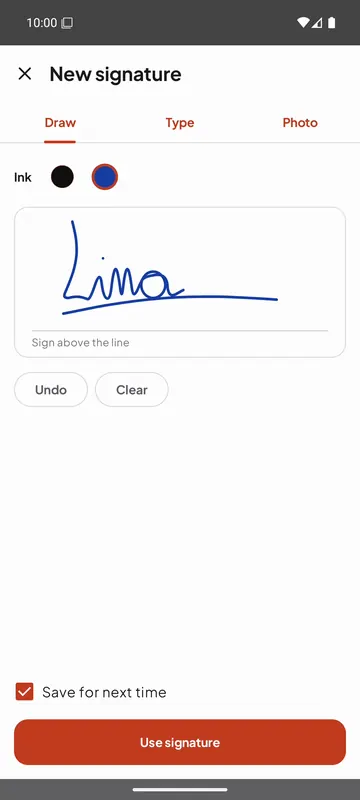
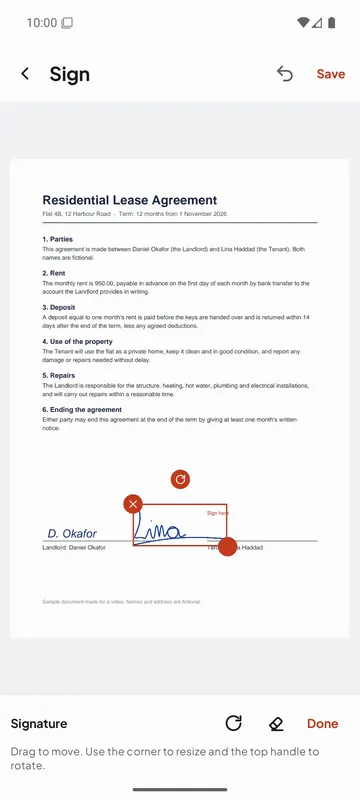
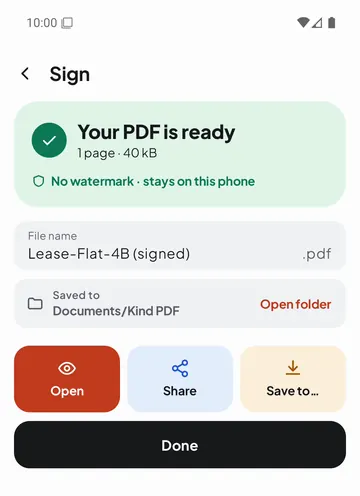
Screenshots from Kind PDF on an Android phone, signing a sample lease made for this guide.
Sign in your phone's browser, with nothing to install
If you only need to sign once, you can do it in Chrome without installing anything. Our Sign PDF tool runs in the browser on your phone, so the document and your signature never leave it.
- Open the tool. Go to rektodigital.com/tools/sign-pdf in Chrome or any phone browser.
- Choose your PDF. Pick it from Downloads, your files or Drive. The first page appears; use Previous and Next to find the page to sign.
- Make your signature. Draw it with your finger, or type your name. Tick Add today's date under it if the document asks for a date.
- Tap where it goes. Tap the signature line, then adjust the size.
- Sign and download. The signed PDF saves to your phone, ready to share by email, WhatsApp or an upload form.
The browser tool is free, with no account and no watermark. It does not keep your signature after you close the page, so if you sign often, the app is quicker.
Three ways to make a signature
| Method | How it works | Good for |
|---|---|---|
| Draw | Sign with your finger or a stylus; undo and clear as you go | The quickest option, and the closest to signing on paper |
| Type | Type your name and pick a handwriting style | A neat, readable signature when drawing on a small screen is hard |
| Photo | Sign on white paper, take a photo, and the paper background is removed | Using your real pen signature exactly as you write it |
In Kind PDF every signature is trimmed to the ink and kept with a transparent background, so it sits cleanly on the line. Saved signatures stay on your phone: they are excluded from cloud backup, and you can delete them at any time in the Sign tool.
Filling in the form before you sign
Many PDFs you are asked to sign are forms with real fields for your name, address and choices. Typing into those fields gives a cleaner result than placing text on top of the page.
In Kind PDF, open Fill forms. It lists the form's fields as a simple form on your screen, grouped by page: text boxes, checkboxes, radio buttons and drop-downs. That is easier on a phone than tapping tiny boxes on the page. Turn on Lock the answers if nobody should change them later, then tap Save filled PDF and sign the saved copy.
- No fields in the PDF? Some PDFs are just flat pages. Kind PDF offers Use Add text, so you can type on the page wherever you need to.
- A signature field that won't fill? Fields meant for certificate-based digital signatures are left empty. To add your handwritten signature, use Sign.
If something goes wrong
- The PDF asks for a password. A locked PDF has to be opened before it can be signed. If you know the password, remove it with Unlock PDF, then sign the unlocked copy.
- The PDF is an email or WhatsApp attachment. Save it to your phone first (Download in Gmail, or Save in WhatsApp), then pick it from Downloads.
- The signature looks too big or too small. Resize it after you place it: drag the corner handle in Kind PDF, or use Size in the browser tool. A signature about as tall as the line's text looks natural.
- A photo of your signature shows grey paper. Sign in dark ink on white paper and photograph it in daylight. Kind PDF's Remove paper background, on by default, keeps only the ink.
- Several pages need a signature or initials. Move between pages with Previous and Next and place your signature on each one before you save.
- The signed PDF is too big to send. Shrink it with Compress PDF or Kind PDF's Reduce size; most signed forms fit under 1 MB, and Compress PDF to 1 MB gets them there.
- A signature field won't accept your signature. That field expects a certificate-based digital signature. Place your handwritten signature next to it with Sign, or ask the sender which kind they need.
Is a signature added on a phone valid?
A signature you draw, type or import is an electronic signature: an image of your signature placed on the document. Many everyday documents accept it, such as rental forms, school slips and simple agreements. Some documents require a certificate-based digital signature or a specific signing service instead. If you are not sure, ask whoever sent you the document what they accept.
Kind PDF draws the signature into the page of a new copy, so it looks the same in every PDF viewer and can't be dragged around by whoever opens the file.
Quick answers
Can I sign a PDF on Android for free?
Yes. Kind PDF lets you draw, type or import a signature and place it on any page for free, with no watermark and no account. The free version keeps 1 saved signature, and you can always sign with a new one.
Can I sign a PDF on my phone without installing an app?
Yes. Open the free Sign PDF tool at rektodigital.com/tools/sign-pdf in your phone's browser, draw or type your signature, tap where it goes and download the signed PDF. The file never leaves your phone.
How do I sign a document on my Android phone if it is not a PDF?
Turn it into a PDF first: Kind PDF converts Word documents to PDF, and photos of paper pages become a PDF with Scan or JPG to PDF. Then sign the PDF and send that copy.
Is my signature uploaded anywhere?
Not with Kind PDF. Signing happens on your phone, and saved signatures are stored only inside the app on your device. They are excluded from cloud backup and device transfer.
How do I add the date next to my signature?
In Kind PDF's Sign tool, tap Date. It adds today's date in your phone's date format, and you can move and resize it like the signature.
Can I fill in a PDF form on my phone?
Yes, if the PDF has form fields. Kind PDF's Fill forms tool shows text boxes, checkboxes, radio buttons and drop-downs as a simple form, and can lock the answers when you save. For PDFs without fields, use Add text.
Does signing change my original PDF?
No. Kind PDF saves the signed version as a new copy, and the original file stays as it was.
How do I sign a PDF sent to me on WhatsApp or Gmail?
Save the attachment to your phone first, then open it in Kind PDF or the browser Sign PDF tool, sign it and share the signed copy back in the same chat or email.
Can I sign more than one page?
Yes. Use Previous and Next to move between pages and place your signature or initials on each page that needs one, then save once.
Why can't I open the PDF to sign it?
It is probably password-protected. If you know the password, remove it with the free Unlock PDF tool, then sign the unlocked copy.
Read next
 About Kind PDFSign a PDF in your browserScan documents to PDFEdit the text of a PDF on AndroidAll guides
Try it yourselfKind PDF is free on Google Play.